IQOS ILUMA Troubleshooting: Lights, Charging and Reset
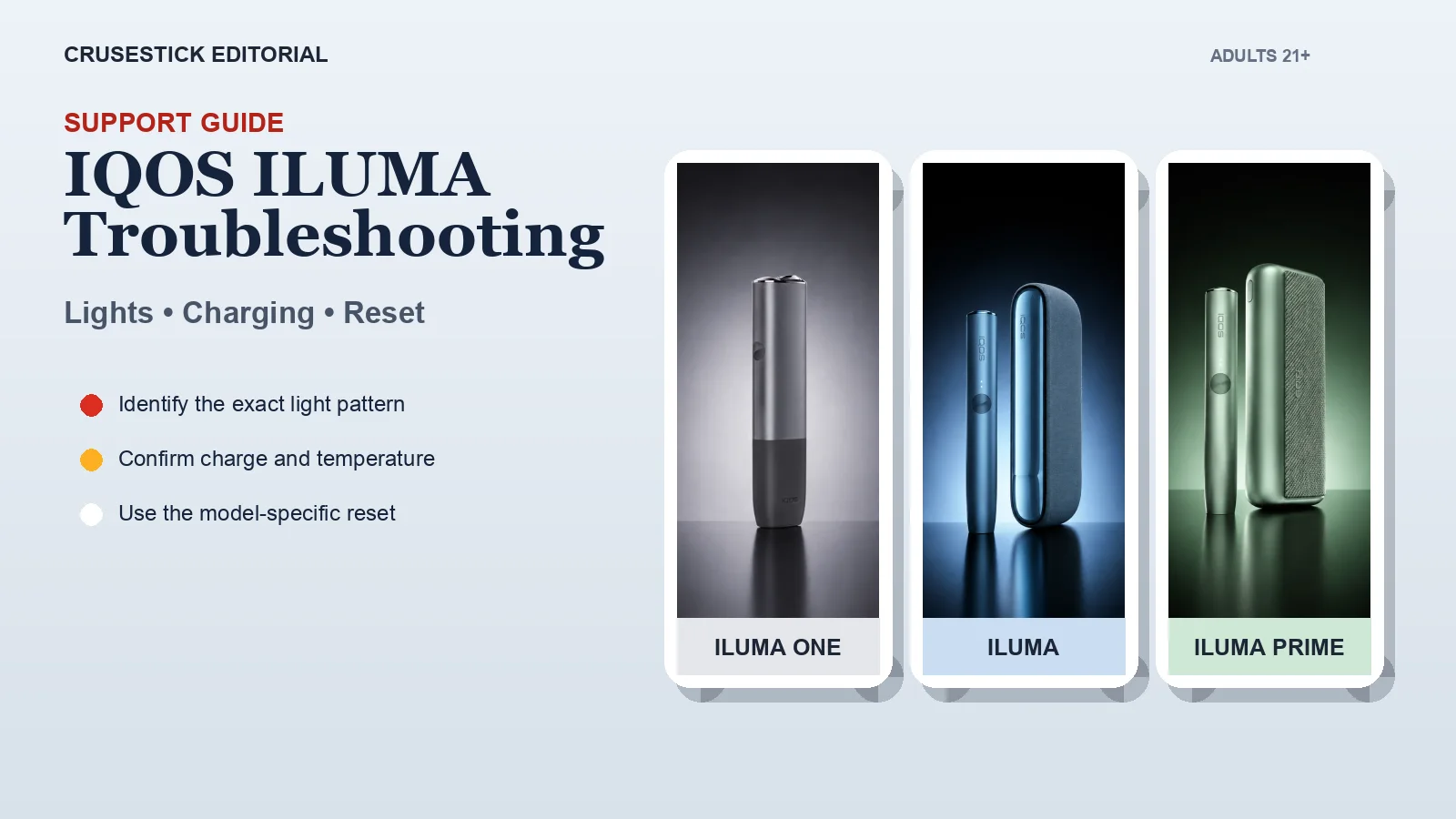
Most IQOS ILUMA problems can be narrowed down by checking the model, battery status, temperature and the exact light pattern. Start with a full charge and the correct cable, then reset the device using the model-specific procedure below. Do not force a stick, insert liquid or open the device. If a red light returns after a reset or the device is damaged, stop troubleshooting and contact IQOS support.
First identify your model
The reset procedure is not identical across the range.
| Model | Basic reset |
|---|---|
| IQOS ILUMA / ILUMA Prime | Put the holder in the pocket charger. Hold the pocket-charger button for 10 seconds, then release. The lights turn off, blink and return to confirm reset. |
| IQOS ILUMA One | Hold the button on the all-in-one device for 7 seconds, then release. The status lights turn off, blink twice and return. |
These steps apply to the original ILUMA family represented in the current CruseStick device catalog. ILUMA i models have their own official guides; confirm the full model name before following instructions found online.
What the common lights mean
For IQOS ILUMA and ILUMA Prime, official UK troubleshooting provides these common signals:
| Signal | Likely meaning | First action |
|---|---|---|
| Yellow blinking light | Holder battery is depleted | Return the holder to the pocket charger |
| Three blinking white lights | Holder is outside its operating temperature range | Let it return to a normal environment; do not heat or cool it artificially |
| Eight blinking white lights | Holder can provide only one use | Recharge the holder and use official troubleshooting if it persists |
| Red blinking light | Device error | Put the holder in the charger and perform the 10-second reset |
| No lights | Device may be off, fully discharged, not making contact or damaged | Turn it on, charge it and inspect dry contact areas |
A light pattern can differ by model, so use the device’s own user guide when the pattern does not match this table.
If the pocket charger shows no lights
Work through these checks in order:
- Put the holder into the pocket charger correctly.
- Briefly press the pocket-charger button.
- If nothing appears, hold the button for four seconds to turn the device on.
- Connect a compatible, certified power adapter and cable.
- If the battery is completely discharged, allow time before expecting a charging pattern. Official IQOS troubleshooting notes that an empty ILUMA pocket charger can take up to 20 minutes to show a light.
- Inspect the charging port and cable for visible damage or moisture.
Do not insert tools into the charging port. If the port is wet, disconnect power and allow the device to dry before further action.
If the holder is not charging
The pocket charger may have power while the holder does not charge. Check that the holder is seated correctly and that the contact areas are dry and free of debris. Turn the device off before wiping accessible contacts with a soft, dry cloth. Do not use water, solvents or abrasive tools.
Then charge the pocket charger with the holder inside. If the holder still does not charge, perform the 10-second reset for ILUMA/Prime. A repeated failure after a full charge and reset is a support issue, not a reason to disassemble the holder.
If the holder blinks red
For ILUMA or ILUMA Prime:
- Place the holder in the pocket charger.
- Press and hold the pocket-charger button for 10 seconds.
- Keep holding until the lights fade out, then release.
- The lights should blink to confirm the reset.
For ILUMA One, hold its device button for 7 seconds and release. If the red light returns, use the official diagnostic tool or contact customer care. A reset cannot repair liquid damage, a deformed battery or physical damage.
If a TEREA stick does not start
Confirm that the stick is new, compatible and inserted in the correct direction to the marked line. IQOS ILUMA is designed for compatible SMARTCORE sticks; older HEETS sticks are not compatible. A used stick should not be reused.
If Autostart does not respond on ILUMA/Prime, the official FAQ recommends reseating a compatible stick and resetting the holder in the pocket charger. You can also start an original ILUMA holder manually according to its guide. Do not force a bent, swollen or damaged stick into the holder.
If a stick breaks, let the device and stick cool before removal. TEREA contains a sharp metal part. Do not disassemble the stick, and keep it away from children and pets. If part of the stick remains inside and cannot be removed without force, stop and contact support.
If aerosol quality is poor
Check one variable at a time:
- use a new, undamaged compatible stick;
- insert it only to the marked line;
- avoid packs stored in very humid or very dry conditions;
- allow the device to return to its operating temperature range;
- fully charge the holder;
- test one other stick from the pack.
The ILUMA heating chamber has no blade to clean. That does not mean every surface should be ignored: keep exterior surfaces, charging contacts and ports dry and free from debris, following the user guide.
For everyday handling, see How to use and maintain IQOS ILUMA. For device selection, compare IQOS ILUMA One vs Standard vs Prime.
When to stop troubleshooting
Disconnect the device and contact support if it is unusually hot, swollen, cracked, wet inside, smells burnt, has a damaged charging port or continues showing a red error after the correct reset. Do not attempt a battery repair.
Frequently asked questions
How do I reset IQOS ILUMA or ILUMA Prime?
Put the holder in the pocket charger, hold the charger button for 10 seconds and release. The lights should turn off and blink to confirm the reset.
How do I reset IQOS ILUMA One?
Hold the button on the all-in-one device for 7 seconds, then release. The lights should turn off, blink twice and return.
Why are three white lights blinking?
Official ILUMA troubleshooting identifies three blinking white lights as an out-of-temperature condition. Let the holder return to a normal operating environment without applying direct heat or cold.
Why does charging show no light?
The device may be off or completely discharged. Turn it on, use a compatible charger and allow time for a deeply discharged battery to show a light. Then inspect the dry port and cable.
Can I clean inside an ILUMA holder with liquid?
No. Do not introduce liquid or cleaning agents into the holder or charging port. Follow the model’s official user guide.
Sources
- IQOS UK: ILUMA diagnostic tool
- IQOS UK: ILUMA One diagnostic tool
- IQOS UK: using and resetting IQOS ILUMA
- IQOS UK: no lights on IQOS ILUMA
- IQOS UK: TEREA compatibility and safety FAQ
Editorial self-audit
- Search intent: directly answers lights, charging, reset and stick-detection queries.
- Scope: limited to original ILUMA, ILUMA Prime and ILUMA One; avoids mixing ILUMA i procedures into the same table.
- Fact check: reset times and light meanings sourced to official model-specific IQOS pages.
- Safety: no device disassembly, improvised battery repair or liquid cleaning advice.
- Removed from Harbor: ambiguous cross-model instructions, generic “safe” claims, decorative AI images and unsupported troubleshooting steps.
- Internal links: two supporting guides, no competing product-page overload.
- Publication check: verify that the CMS title does not duplicate an H1 in the body.
Related Articles
Related on CruseStick
Categories you might like
Ready to Try TEREA?
Browse our selection of authentic IQOS TEREA sticks. Fast shipping across the USA with competitive prices.
Shop Now